
Set when clients can book you
Give each session type its bookable hours, and add your personal schedule if your booking page still shows no times.
Your booking page offers times from two places: the Hours on each session type, and your personal weekly schedule. If neither has hours, the page spins or shows no times after a client picks a day. Set the session's hours first, then check.
Before you start
- Time: 5 minutes.
- Decide your bookable hours for each day, and any days you're away.
Step 1: Set the hours for each session type
- Go to Calendar > Services and click Edit on a session.
- Open the Hours tab.
- Check the Timezone at the top.
- Use Weekdays or Every Day to fill a typical week fast, or switch each day on and set its start and end time. + Add hours adds a second block on the same day (for a lunch break, for example). Copy to all copies one day's hours to the rest.
- Click Save Hours.
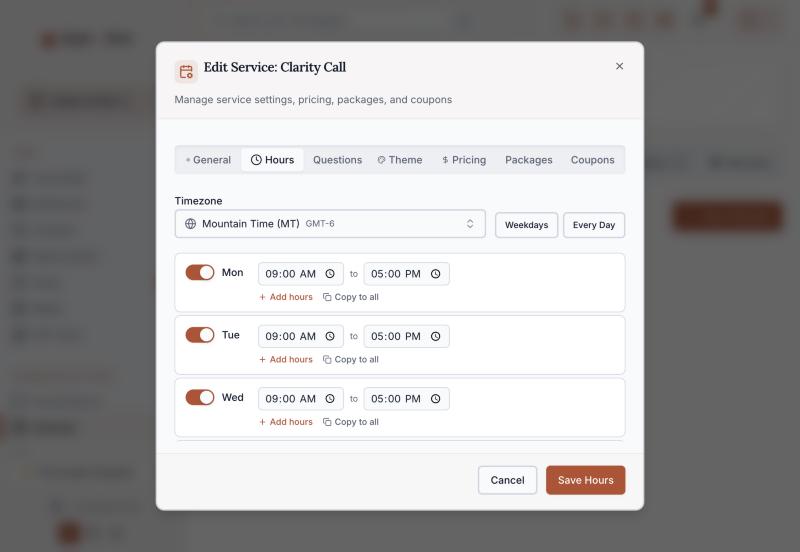
Repeat for each session type. Different sessions can have different hours, for example discovery calls only on Tuesdays.
Step 2: Check your booking page
Open the session's booking link in a private window, pick a day you work, and look for times.
- You see times: you're done.
- It spins or shows no times: add your personal weekly schedule (Step 3).
Step 3: Your personal weekly schedule (if needed)
- Go to Calendar > My Availability. Check your name is selected under Team member.
- Under Availability Schedule, click Add Hours. Set a Start Time and End Time, keep Available on, and click Save Schedule. Repeat for each working day.
- Days off and holidays: under Blackout Dates, click Add Blackout, choose the dates, add a reason if you like, and click Save Blackout Date.
On Team Capacity, anyone without a personal schedule shows No schedule and a Set Up button, which opens the same form.
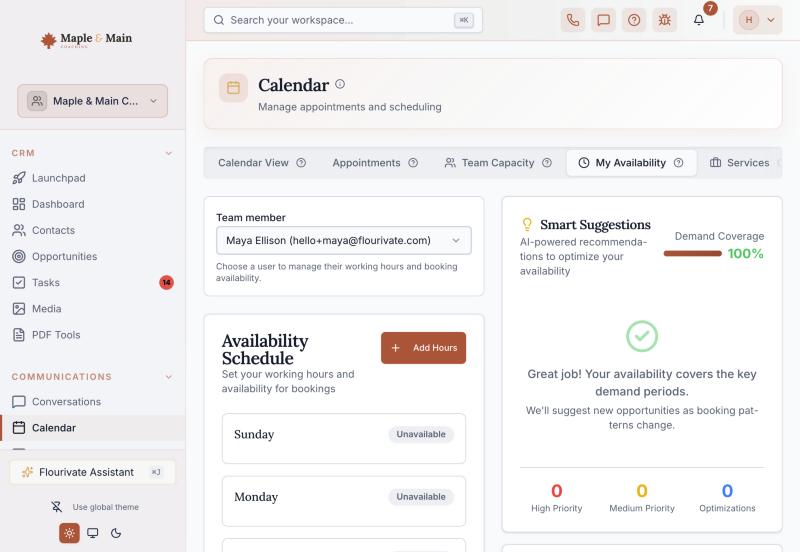
Don't trust the Demand Coverage score
Smart Suggestions can say "Great job!" and 100% even when every day is Unavailable, as in the screenshot above. Trust the day rows and a test booking instead.
Changing hours later
A saved row in My Availability can't be edited in place. Delete it and add it again with the new times.
Check it worked
- A private-window test shows open times on a day you work.
- Booked appointments make those times disappear for other clients.
If something's off
- Times show at the wrong hour: check the Timezone on the session's Hours tab and your time zone in Settings > Workspace Profile.
- A day you work shows no times: check that day's switch is on in the session's Hours, and that it isn't a blackout date.
- Templates: Apply Template under Availability Templates isn't filling the schedule right now. Add hours directly instead.